You can extract frames from a video online using Revideo’s Video Frame Extractor. Upload your video, choose automatic or manual extraction, adjust the settings, and download individual frames or all extracted images.
Sometimes, you need a still image from a video for a thumbnail, tutorial, or detailed review. Instead of taking random screenshots while playing the video, you can use a video frame extractor to capture specific scenes or select keyframes automatically. This saves time and helps you get images from the moments that matter.
In this guide, we’ll explain how to extract frames from a video online for free using Revideo’s Video Frame Extractor.
How to Extract Frames from a Video Online
Extracting keyframes from a video clip is very simple and straightforward. All you have to do is follow the steps below, without paying a single cent.
Step 1: Open the Revideo Video Frame Extractor
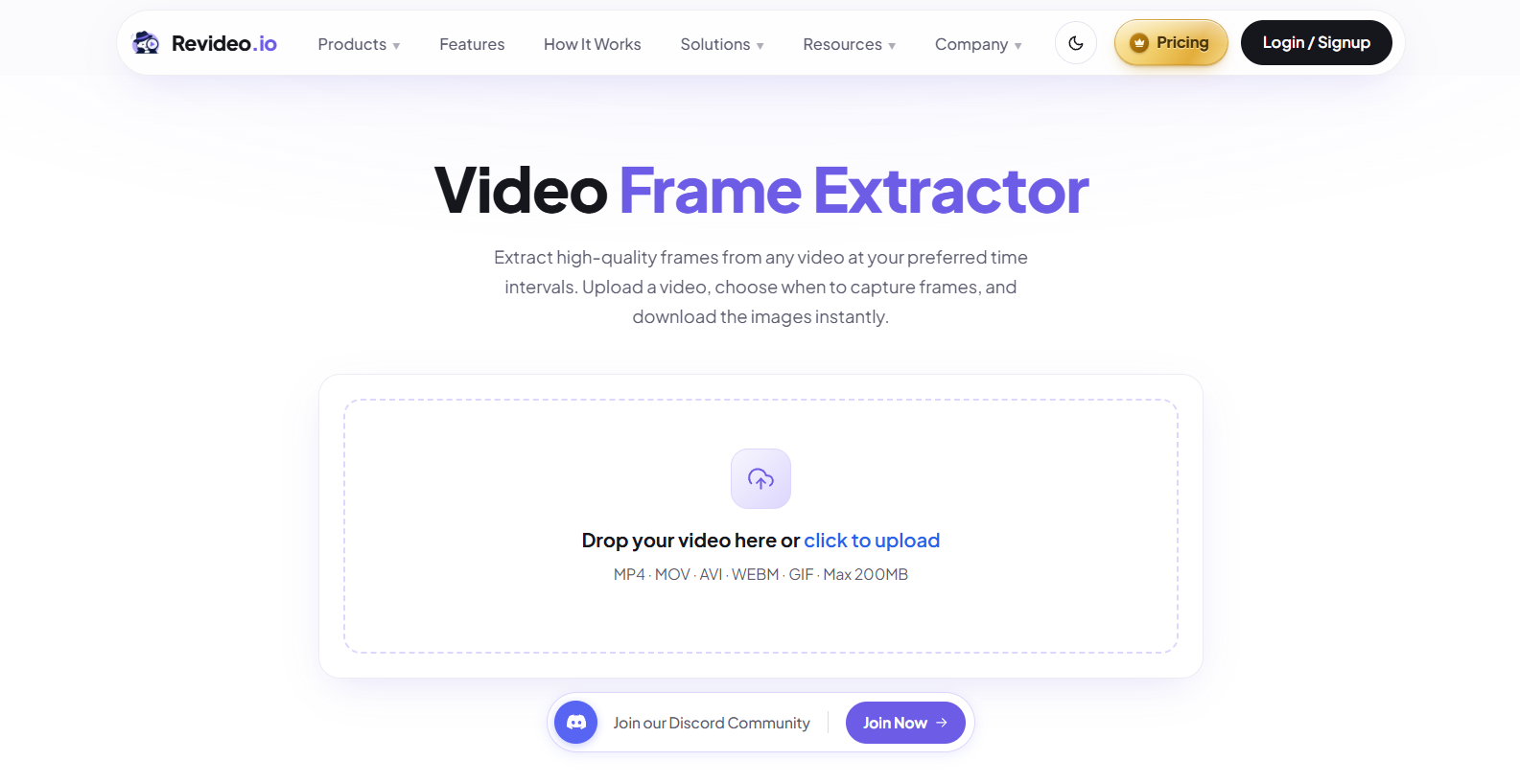
First, open an online tool that lets you extract video frames quickly and easily. For this, we are using Video Frame Extractor by Revideo. It has a simple interface and uses computer vision to analyze each scene and extract only the keyframes from a video with every detail in them.
Step 2: Upload your video
Upload your video to Video Frame Extractor. You will see a large input box where you can drag/drop the video, or upload directly from your device storage.
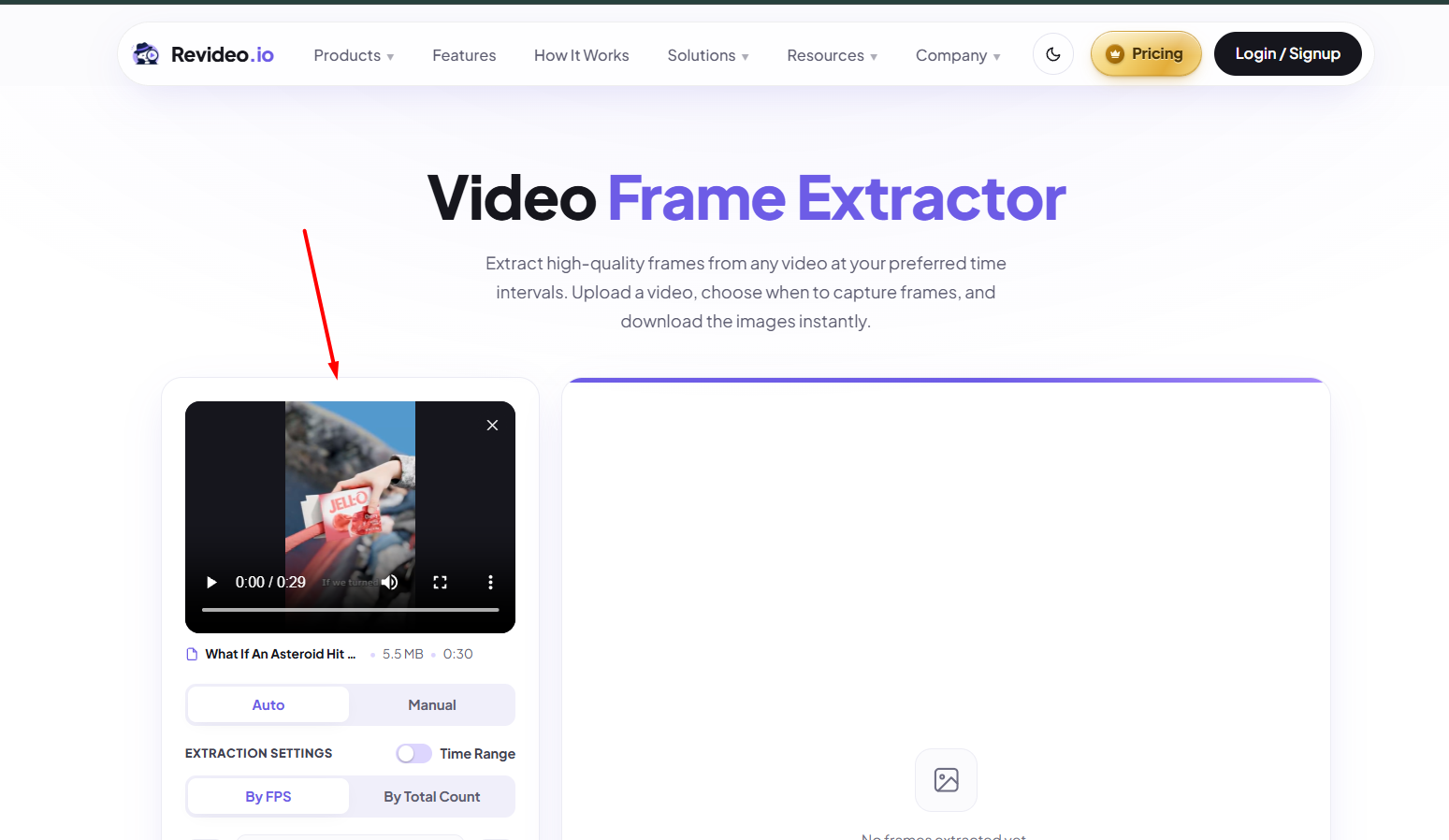
The best part is, you can upload the video in any format: MP4, MOV, AVI, WEBM, or GIF. It accepts all these formats, so you don’t have to convert them into a specific one.
Step 3: Choose the frame extraction settings available
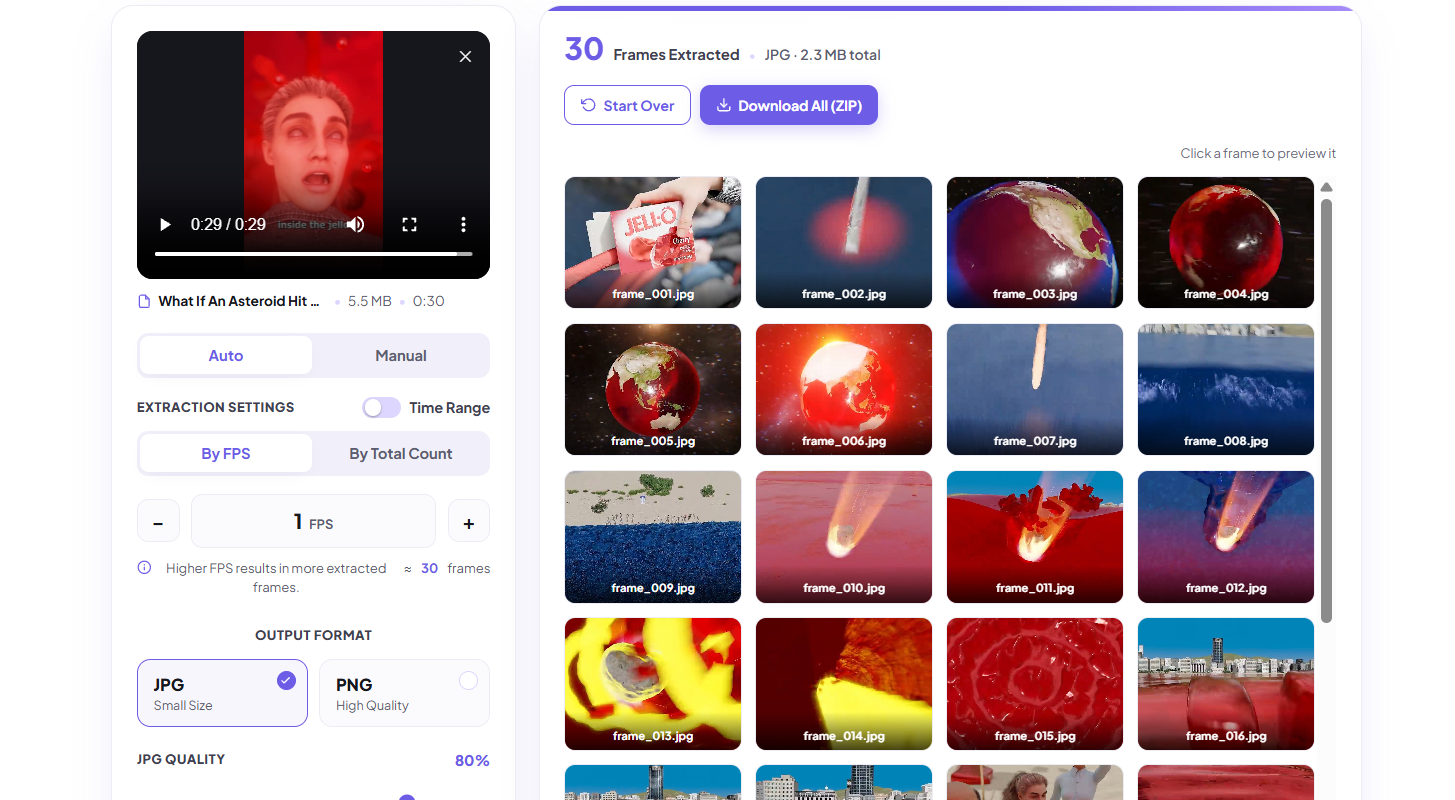
After the upload is complete, you will see different options such as setting the time interval, time range, output format, frame quality, and how you want to extract frames (by FPS or Total Count).
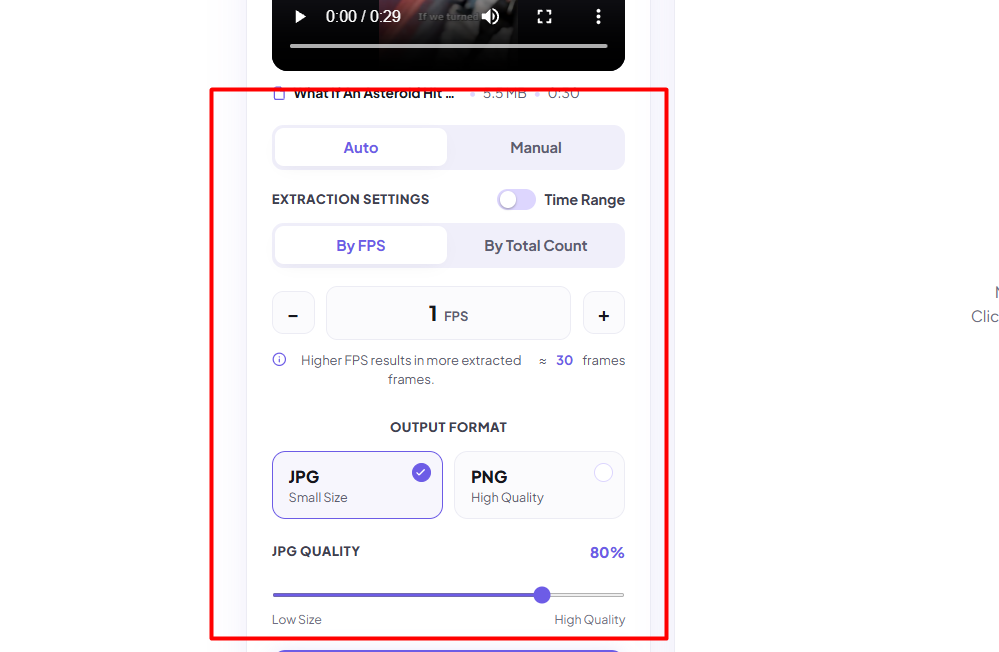
Here’s an overview of each setting and how to use it:
- Auto: The tool automatically extracts frames from the video using computer vision.
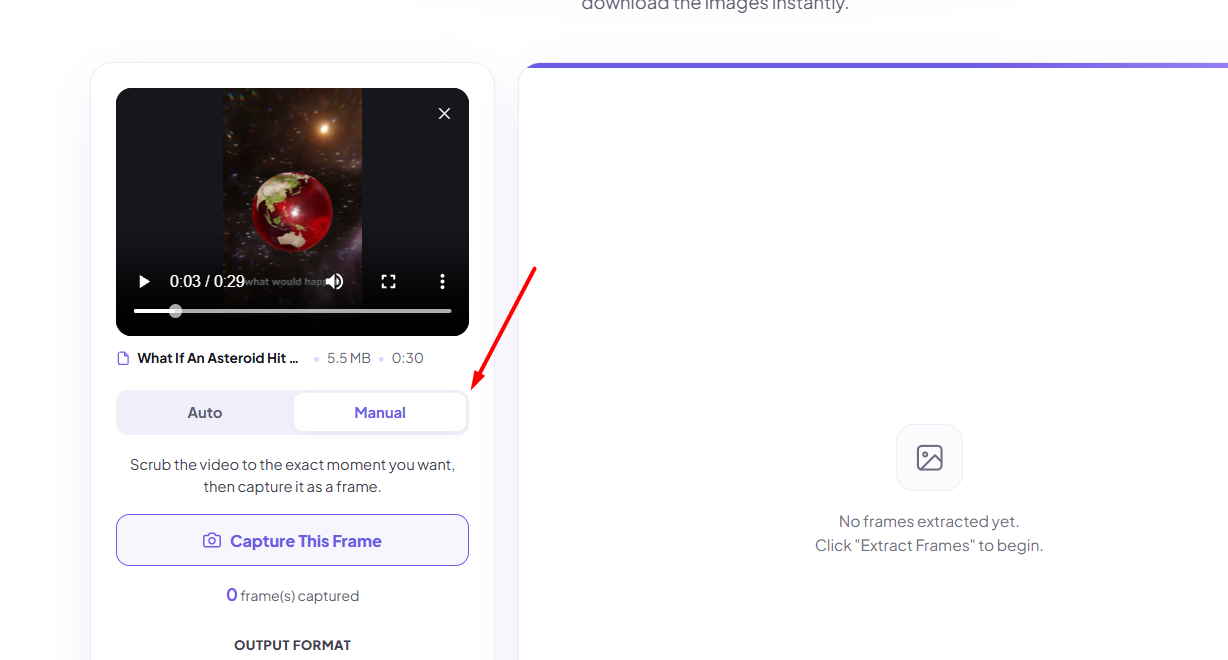
- Manual: Play the video and click on “Extract Frames” to manually extract the exact scene.
- Time Range: By enabling this feature, you will see a time interval option where you can set the range of the video so the tool only extracts frames from it.
- By FPS: Choose how many frames to extract per second of video. For example, selecting 1 FPS typically extracts one frame per second, while higher FPS settings capture more frames and provide a more detailed sequence.
- By Total Count: Using this feature, you can decide how many frames you want in total. If you choose 10, then the tool will extract 10 frames from the video.
- Output Format: You can pick the format of images, such as PNG or JPG, as you like. PNGs are often high-quality pictures, while JPGs are compressed. Therefore, if you choose JPG, you can also adjust the quality of the image.
Step 4: Extract and preview the frames
Once you are done with the settings, click on the “Extract Frames” button, and that’s it. The Video Frame Extractor will extract frames from the video. Click on each one, and you can preview them and check the quality.
Step 5: Download the images
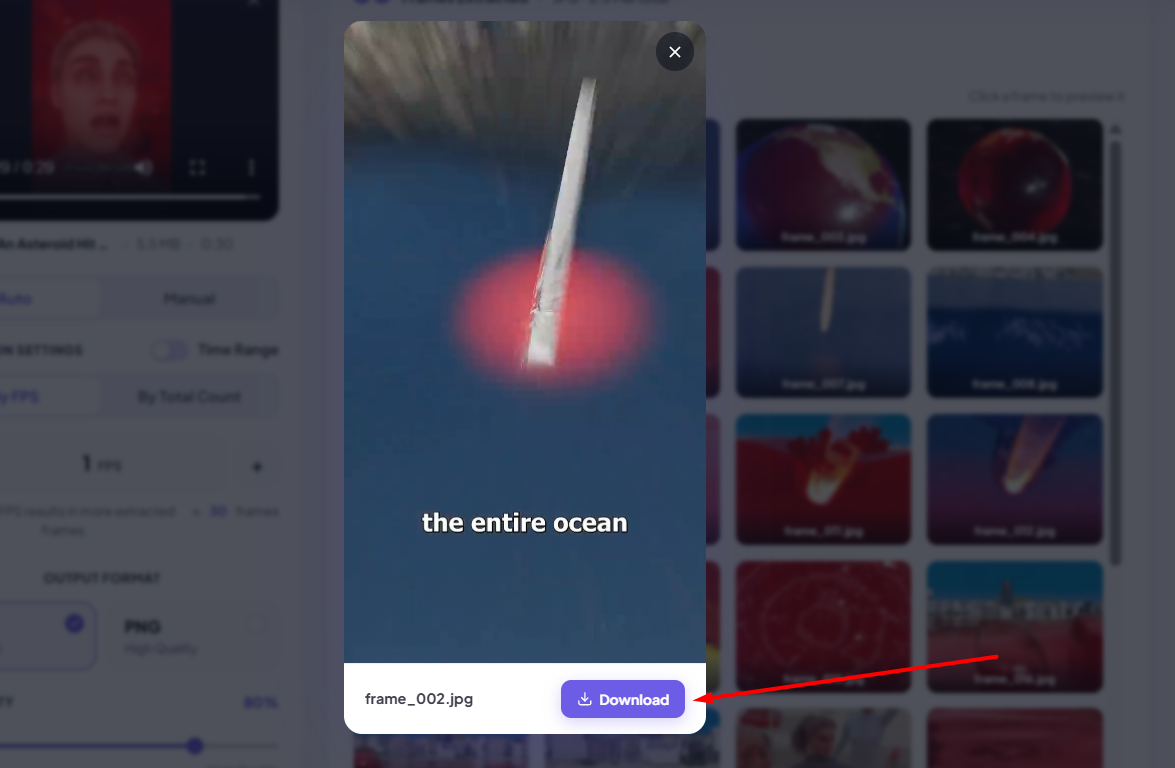
If you are satisfied with the extracted frames, you can click on “Download All”, and you will get a ZIP file saved in your storage. Or you can just download a specific frame by clicking on it and then hitting the “Download” button.
How to Extract a Single Frame from a Video
To extract just one frame, upload your video to Revideo's Video Frame Extractor and select By Total Count in the extraction settings. Set the total count to 1 and run the extraction.
The tool will return one frame based on its selection process. If you need an image from an exact moment, use the manual capture option to choose the scene yourself.
How to Extract a Frame at a Specific Timestamp
On the contrary, if you want to take a screenshot of a specific scene from the video, then here’s how you can do it:
-
Upload the video into Revideo’s Video Frame Extracting tool.
-
In the settings, choose the “Manual” option.
-
You can play the video and pause it on a scene that you want to extract.
-
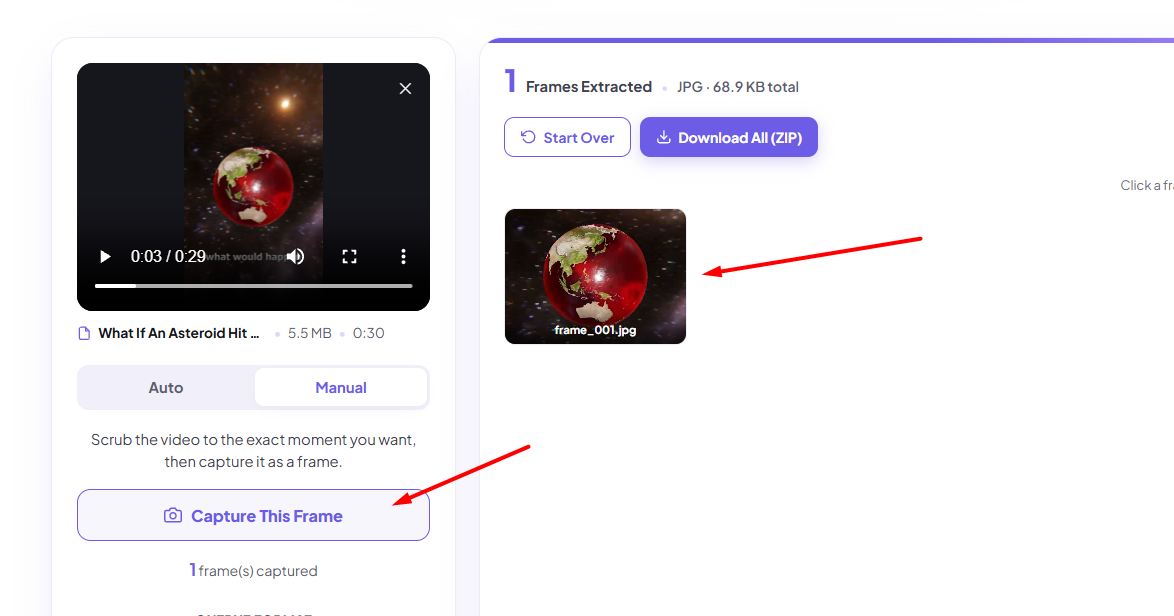
Click on “Extract Frames”, and it will take a picture of it.
-
You can then download the extracted frame in JPG or PNG and save it to your device storage.
How to Extract High-Quality Images from a Video
The quality of an extracted frame depends largely on the original video's resolution and the output settings. To get the best results, upload a high-resolution video and select a suitable image format and quality setting.
Revideo's Video Frame Extractor lets you capture specific scenes and download the resulting images for use in your projects.
Common Uses of Video Frame Extraction
Video Thumbnails:
As a YouTuber or social media influencer, you need thumbnails for your videos to gain people’s attention. But sometimes, you are out of ideas and unable to create a new thumbnail for the video. In that case, the frame extraction process helps you catch unique scenes from a video and make them thumbnails.
Step-by-Step Guides:
The best use case of video frame extraction is that you can create tutorials or step-by-step guides. For instance, if you watched a video on YouTube and need to provide images of each step in your blog or content, you can use Video Frame Extractor.
You can pick the specific scene and take screenshots of it without compromising on image quality.
Product Photos:
Sometimes, you don’t have a product in your hands, but someone on Instagram or Facebook uploads a review video of the same product.
You can use the video frame extraction tool to take images of the product and use them in your content or product listings.
Reviewing Footage:
As an investigator, you can also use the video frame extraction method to easily capture screenshots of critical scenes from a video and review them to find clues.
Sports Analysis:
Sports analysts often review match footage to examine important moments, such as fouls, missed shots, or player movements. By extracting frames from a video, they can study specific moments more closely and compare players’ positions during the game. This helps them review key plays and better understand what happened during a match.
Final Thoughts
Extracting frames from a video is a simple way to save important scenes as images. Whether you need a thumbnail, visuals for a tutorial, or screenshots for reviewing footage, an online frame extractor can make the process easier. With Revideo’s Video Frame Extractor, you can upload a video, adjust the extraction settings, preview the results, and download the frames you need for free.
Frequently Asked Questions
-
What is the best way to extract frames from a video?
An online video frame extractor is a convenient option if you want to save still images without installing desktop software. You can upload a video, choose automatic extraction settings or manually select a scene, and download the resulting frames. Revideo's Video Frame Extractor offers these options.
-
Is there a free tool to extract frames from a video?
Yes. Revideo's Video Frame Extractor lets users extract frames online without installing additional software. Check the tool's current file-size and format limits before uploading your video.
-
Is there any way to capture a scene from a video at a specific time?
Yes. If the tool supports manual frame capture, upload your video, play it, pause at the desired moment, and capture the frame. You can then download the resulting image in a supported format.